Monday, July 10, 2017

Creating a Boot Identity File(boot.properties) for Easier Server Start Up

Creating a Boot Identity File(boot.properties) for Easier Server Start Up

1. Shutdown Weblogic server

2. cd /biprd/p01/Middleware/user_projects/domains/bi_domain/servers/AdminServer/security
   cd /biprd/p01/Middleware/user_projects/domains/bi_domain/servers/security (Incase of Managed Webglogic server)
   create security folder in case it does not exist

3. create boot.properties file and add weblogic username and password
   vi boot.properties
   username=weblogic
   password=weblogic1

4. Start the Weblogic server

5. View boot.properties file and you will see username and password are in encrypted format
   cat boot.properties
   #Thu Jan 02 01:21:12 CST 2016
   password={AES}ZJDv6aTNMV8EVahgA6VwoCMCrLo/I2iPbnV423QS3ha\=
   username={AES}MF9QSoppOapI7sZQQugwI9BRSJOBjP1a5GyeB8ni113\=

Note: Repeat this step if there is a Managed Weblogic Server

Weblogic components Start/Stop Procedure

Weblogic components Start/Stop Procedure

Node Manager startup

1. cd /biprd/p01/Middleware/wlserver_10.3/server/bin
   ./setWLSEnv.sh
   nohup sh ./startNodeManager.sh > /tmp/startNodeManager.log &

Weblogic startup

2. cd /biprd/p01/Middleware/user_projects/domains/bi_domain/bin
   ./setDomainEnv.sh
   nohup ./startWebLogic.sh -Dweblogic.management.username=weblogic -Dweblogic.management.password=weblogic123 -Dweblogic.security.allowCryptoJDefaultPRNG=true > /tmp/startWebLogic.log &

   nohup ./startWebLogic.sh & (Use this, incase password is configured in boot.properties file)

Managed Weblogic startup

3. cd /biprd/p01/Middleware/user_projects/domains/bi_domain/bin
   ./setDomainEnv.sh
   nohup ./startManagedWebLogic.sh bi_server1 http://172.16.45.112:7001 -Dweblogic.management.username=weblogic -Dweblogic.management.password=weblogic123 & > /tmp/startManagedWebLogic.log &

   nohup ./startManagedWeblogic.sh bi_server1 (Use this incase username,password,URL is configured in boot.properties file)

1. Node Manager Shutdown

kill -9 `ps -ef | grep [N]odeManager | awk '{print $2}'`

2. Weblogic shutdown
 
   cd /biprd/p01/Middleware/user_projects/domains/bi_domain/bin
   ./setDomainEnv.sh
   ./stopWebLogic.sh -Dweblogic.management.username=weblogic -Dweblogic.management.password=weblogic123 -Dweblogic.security.allowCryptoJDefaultPRNG=true

   ./stopWebLogic.sh & (Use this, incase password is configured in boot.properties file)

3. Managed weblogic shutdown

  ./setDomainEnv.sh
  ./stopManagedWebLogic.sh bi_server1 http://172.16.45.112:7001 -Dweblogic.management.username=weblogic -Dweblogic.management.password=weblogic123

   nohup ./stopManagedWebLogic.sh bi_server1 (Use this incase username,password,URL is configured in boot.properties file)

Thursday, July 06, 2017

R 12.2 ADOP (R12.2 Online Patching)

Online patching is the most important new feature in Oracle EBS 12.2. It is the ability to patch a running system without having to take the system down for a significant period of time while the patches are applied. Even you can apply Maintenance Pack 12.2.2 or 12.2.3 or 12.2.4 once you install or upgrade to R12.2.0 base.

It will enable R12.2 PATCH Environment.
Dependancy on opatches. All Opatches must be applied before enabling ADOP.
Missing Opatches will be reported by EBS DB CodeLevel Checker script.
All AD_ZD packages should be valid before enabling them.
To implement Online Patching Run reports/scripts mentioned in Using the Online Patching Readiness Report in Oracle E-Business Suite Release 12.2 [1531121.1]
Once you enable ADOP i.e. Online Patching you cannot apply any patches through ADPATCH.
If you still want to apply any patch via adpatch, source ENABLE_ADPATCH=yes. (if oracle recommends)
All patches applied using adop utility will be applied to PATCH environment i.e. fs2.
When you want to make the patches live you can execute adop using cutover phase. It will switch filesystems.
To synchronize both filesystems i.e. fs1 and fs2 you can execute adop using fs_clone phase.
Phases:

adop phase=prepare -> copies the application code
adop phase=apply -> apply patches to PATCH Environment
adop phase=finalize -> makes ready the system for cutover
adop phase=cutover -> bounce the system and does filesystem switchover. fs2 becomes RUN environment.
adop phase=cleanup -> remove obsolete objects.
adop phase=fs_clone -> synchronize filesystems

Other adop options

adop phase=abort
adop -status -detail
adop phase=apply restart=yes
adop phase=apply options=forceapply
adop phase=apply abandon=yes
adopscanlog -latest=yes
adop phase=apply patches=123456 wait_on_failed_job=yes
adop hotpatch=yes

Eg:adop phase=apply patches=3251276_S:u3251276.drv patchtop=/u01/patches/3251276 hotpatch=yes workers=32

R 12.2 New Feature AFPASSWD utility to change password

Apps password change routine in Release 12.2 E-Business Suite changed a little bit. We have now extra options to change password, as well as some manual steps after changing the password using FNDCPASS.
There is a new utility introduced called AFPASSWD. This utility unlike FNDCPASS wont require you to enter apps and system user password, and makes it possible to separate duties between database administrator and application administrator. In most cases both these roles are done by same DBA. But in large organizations, there may be different teams that manage Database and Application. You can read about different options available in AFPASSWD in EBS Maintenance guide.
Whether you use FNDCPASS or AFPASSWD to change the APPLSYS/APPS password, you must also perform some additional steps. This is because in R12.2, the old AOL/J connection pooling is replaced with Weblogic Connection Pool ( JDBC Datasource ).  Currently this procedure is not yet automated. It would be good, if this can be automated using some WLS scripting.
AFPASSWD Usage
Changing SYSADMIN Password from application tier
AFPASSWD -f SYSADMIN
Enter the ORACLE password of Application Object Library ‘APPSUSER’:
Connected successfully to APPS.
Working…
Enter new password for user [SYSADMIN]:
Verify new password for user [SYSADMIN]:
Password is changed successfully for user SYSADMIN.
AFPASSWD completed successfully.

FOR CHANGING APPLSYS PASSWORD WE NEED TO SHUTDOWN APPLICATION TIER AND ONCE WE FINISH CHANGING THE PASSWORD WE NEED TO RUN AUTOCONFIG ON ALL TIERS

Steps will be as below

1.SHUTDOWN APPLICATION TIER SERVICES
2.CHANGE PASSWORD
3.RUN AUTOCONFIG ON ALL TIERS
4.START APPLICATION TIER SERVICES.

How to change APPLSYS Password from Application Tier
AFPASSWD -c apps@TST -s APPLSYS
Enter the ORACLE password of Application Object Library ‘APPSUSER’:
Connected successfully to APPS.
Enter the password for your ‘SYSTEM’ ORACLE schema:
Connected successfully to SYSTEM.
Working…
Enter new password for user:
Verify new password for user:
Working…
AFPASSWD completed successfully.

R 12.2: What is ETCC Tool?

R 12.2: What is ETCC Tool?

ETCC Tool Enhanced for Finding Mandatory EBS 12.2 Patches

The E-Business Suite Technology Codelevel Checker (ETCC) tool has been provided to help you identify missing database or middle tier patches that may need to be applied to your E-Business Suite Release 12.2 system.

The utility has now been significantly enhanced to map bug fixes to patches, generating a Patch Recommendation Summary that lists the patches (including versions and associated filenames) that are required for your system.

The following example shows part of an ETCC run, where the DB-ETCC script is used to identify missing database patches.

DB-ETCC Example

Why Does This Matter?

As the last section of the above example shows, there is a difference between bug fixes and patches. A bug fix ID for an issue does not change, but the patch ID that delivers the fix might: for example, the original patch could be superseded by another patch. So you need to not only know what bug fix you require, but which patch currently delivers it.

With previous versions of ETCC, the relevant patches (including Patch Set Updates and Exadata patches) had to be identified manually, by referring to the relevant documentation.  In this latest version, bug fix to patch mapping is done for you, avoiding the need for manual identification and the risk of misidentifying the patch needed. That is the principal enhancement in this version of ETCC.

Coverage

This new version of ETCC maps missing bug fixes to corresponding patches for the latest and latest but one quarterly bundles supported by EBS 12.2. You can use this version of ETCC with older bundles, but it will only list missing bug fixes (as previous versions did), and you will see a message saying "Patch mapping not available".

Obtaining ETCC

The ETCC utility can be downloaded via Patch 17537119 from My Oracle Support.

References

Oracle E-Business Suite Release 12.2: Consolidated List of Patches and Technology Bug Fixes (Doc ID 1594274.1)

Source:https://blogs.oracle.com/stevenchan/etcc-tool-enhanced-for-finding-mandatory-ebs-122-patches

R12.2. Start and Stop Procedure of Services

R12.2. Services Start and Stop Procedure

All components - Application (Middle Tier)

START

$INST_TOP/admin/scripts

adstrtal.sh apps/****
Enter Weblogic Server Password: *****

STOP

$INST_TOP/admin/scripts

adstpal.sh apps/****
Enter Weblogic Server Password : *****


Individual Components:  Application(Middle Tier)
$INST_TOP/admin/scripts
when we want to stop all the services using adstpal.sh we use adstpal.sh apps/apps<pwd> but in R12.2 it will ask Weblogic Server Password
We need to provide Weblogic admin password
ComponentCommand
Node Manager$adnodemgrctl.sh start
Enter Weblogic Admin Password:
Weblogic Admin Server$adadminsrvctl.sh start
Enter Weblogic Admin Password:
Application Listener$adadlctl start
Oracle Process Manager$adopmnctl.sh start
Apache Services$adapchctl.sh start
Managed Server for OACORE Services$admanagedsrvctl.sh start oacore_server1
Enter Weblogic Admin Password:
Managed Server for FormsServices$admanagedsrvctl.sh start forms_server1
Enter Weblogic Admin Password:
Managed Server for Fusion MiddleWare  Services$admanagedsrvctl.sh start oafm_server1
Enter Weblogic Admin Password:
Managed Server for Forms web  Services$admanagedsrvctl.sh start forms-c4ws_server1
Enter Weblogic Admin Password:
Concurrent Manager Service$adcmctl.sh start apps/apps
Fullfillment Serer Services$jtffmctl.sh start
Stop
When we want to stop adstpal.sh apps/apps again it is going to ask weblogic password
ComponentCommand
Fullfillment Serer Services$jtffmctl.sh stop
Concurrent Manager Service$adcmctl.sh stop apps/apps
Managed Server for Forms web  Services$admanagedsrvctl.sh stop forms-c4ws_server1
Enter Weblogic Admin Password:
Managed Server for Fusion MiddleWare  Services$admanagedsrvctl.sh stop oafm_server1
Enter Weblogic Admin Password:
Managed Server for FormsServices$admanagedsrvctl.sh stop forms_server1
Enter Weblogic Admin Password:
Managed Server for OACORE Services$admanagedsrvctl.sh stop oacore_server1
Enter Weblogic Admin Password:
Apache Services$adapchctl.sh stop
Oracle Process Manager$adopmnctl.sh stop
Application Listener$adadlctl stop
Weblogic Admin Server$adadminsrvctl.sh stop
Enter Weblogic Admin Password:
Node Manager$adnodemgrctl.sh stop
Enter Weblogic Admin Password:

R12.2 Changing APPS or APPLSYS Password on R12.2 Instance

R12.2 Changing APPS or APPLSYS Password on R12.2 Instance

+ Presently Application is working normal
+ Now lets change APPLSYS password
+ These steps must be carried out on the run file system.

1. Shut down the application tier services using the

$INST_TOP/admin/scripts/adstpall.sh

2. Change the APPLSYS password.

FNDCPASS apps/<existing apps passwd>  0 Y system/<system password> SYSTEM APPLSYS <new apps passwd>

3. Start AdminServer using the $INST_TOP/admin/scripts/adadminsrvctl.sh script. Do not start any other application tier services.

4. Change the “apps” password in WLS Datasource as follows:

Log in to WLS Administration Console. http:/test.localdomain:7002/console

- Click Lock & Edit in Change Center.
- In the Domain Structure tree, expand Services, then select Data Sources.
- On the “Summary of JDBC Data Sources” page, select EBSDataSource
  - On the “Settings for EBSDataSource” page, select the Connection Pool tab
  - Enter the new password in the “Password” field.
- Enter the new password in the “Confirm Password” field.
- Click Activate Changes in Change Center.

5. Check whether you are able to connect to db using apps

  - sqlplus apps/<newpassword> from application tier.

6. Before Starting all the services. Run Autoconfig.
- $ADMIN_SCRIPTS_HOME/adautocfg.sh

7. Now start the services.

$INST_TOP/admin/scripts/adstrtal.sh

8. Verify the WLS Datastore changes as follows:

- Log in to WLS Administration Console.
- In the Domain Structure tree, expand Services, then select Data Sources.
- On the “Summary of JDBC Data Sources” page, select EBSDataSource.
- On the “Settings for EBSDataSource” page, select Monitoring > Testing.
- Select “oacore_server1”.
- Click Test DataSource
- Look for the message “Test of EBSDataSource on server oacore_server1 was successful”.


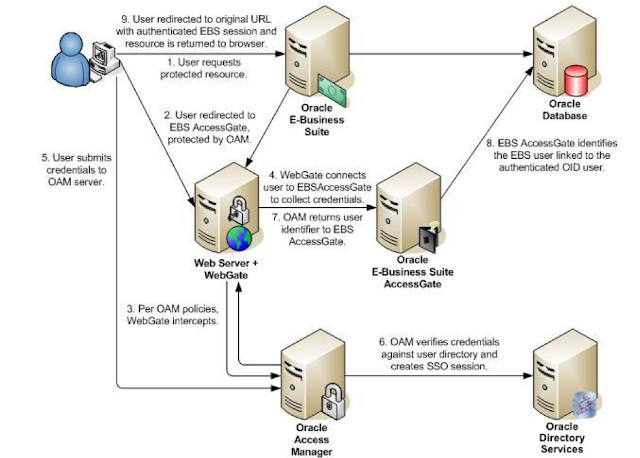
Oracle EBS integration with Oracle IDCS for SSO

Oracle EBS integration with Oracle IDCS for SSO Oracle EBS SSO? Why is it so important? Oracle E-Business Suite is a widely used application...